Trunky: Introduction
In short Trunky is an experimental desktop app built with Electron, React, and TypeScript to explore AI-powered chat and workspace workflows. It connects a local OpenAI-compatible host to provide chat completions and embeddings, organizes conversations, and stores workspace data in SQLite, with tools for semantic search, workspace inspection, and prompt orchestration.
Contents · 9 sections
- Introducing Trunky
- Motivation
- What Trunky Is
- The Overall Function
- Key Decisions For Development
- So What Is Inside?
- Architecture Overview
- AI Orchestration: The Heart of Trunky
- Prompt and Context Management
- Workspace Memory and Knowledge Tools
- Model Provider and Adapter Layer
- Tool-First AI Design
- Frontend as Runtime Shell
- Summary
- What’s Next
One of the easiest and most convenient ways to learn new technologies is to use them. Everything AI-related is full of buzzwords: from RAG systems via agentic memory to classification heads and embeddings - it is hard to get an overview and even harder to stay up to date.
So that’s why I started this side project: to become more familiar with all that and learn how to build modern, AI-oriented applications. And I would like to share my journey with you.
Introducing Trunky
I want to introduce you to Trunky - a learning-first AI project built with Electron, React, and TypeScript. It is a playground for experimenting with large language models, tool orchestration, workspace memory, and prompt engineering.
In this first article, I want to explain what Trunky is and how its architecture is shaped around AI technologies. I explain the key decisions I made and how they affect the project as it grows, the obstacles I ran into, and how to avoid them when starting an AI-centric app like Trunky again.
Motivation
Trunky’s purpose is not to be a mature application. Its purpose is to:
- show how an AI backend architecture can be built for tool use
- demonstrate workspace memory and retrieval patterns
- experiment with prompt engineering in a real desktop app
- provide a personal lab for comparing providers and building AI workflows
- serve as a case study on how even small, locally hosted AI models can be used to build apps that would not have been possible a few years ago
If you’re interested in how to design an intelligent desktop assistant, Trunky might be a useful case study.
What Trunky Is
The initial idea behind Trunky was to build a simple chat application with a locally hosted AI model that could then be used to experiment with more advanced features. The goal has become to extend Trunky into an automatic knowledge-management system that gathers, organizes, and retrieves information from chat conversations in a way that feels agentic: autonomous, planned, purposeful, and somehow intelligent.
Today Trunky is:
- a desktop AI chat application that
- organizes chats in conversations
- implements different strategies to prevent token overflow
- a workspace-based knowledge assistant that enables the AI model to interact with workspace data through tools
- a sandbox for trying ideas like semantic search, tool-enabled reasoning, and multi-model integration
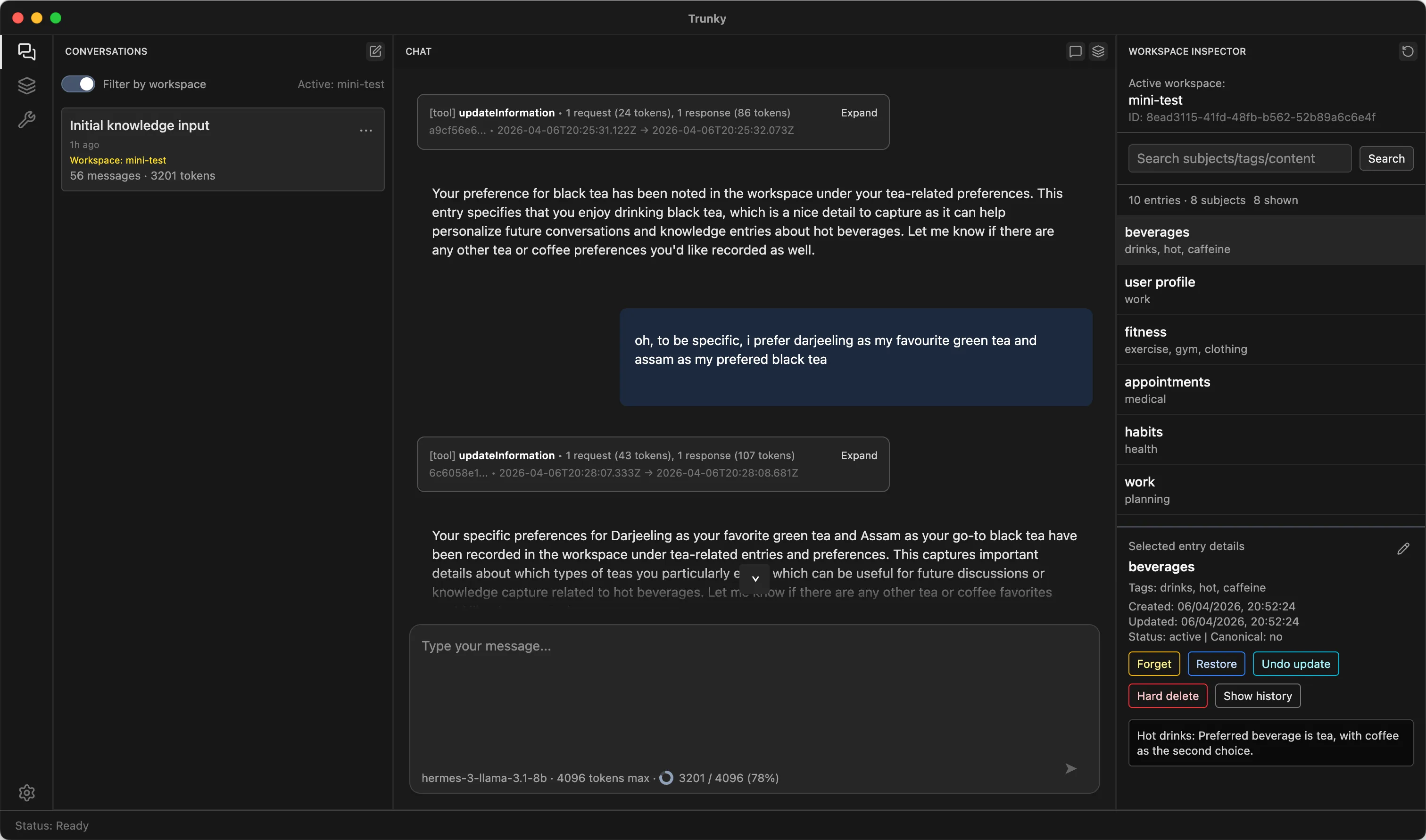
In the image above, you can see Trunky’s main screen. Like many other AI chat applications, you have your chat history and input area in the middle, along with side panes for managing conversations and workspace information.
The Overall Function
Trunky’s UI is divided into four pages, which you can navigate through the left navigation bar:
Chat Page The main view of the application. Here you can chat with the LLM model and use it to store and access knowledge items. It works like a mini-RAG system: RAG (Retrieval Augmented Generation) is a framework that allows an AI model to access and process data that were not part of its training, such as a company’s database, without having to put them into the (often limited) context window.
Trunky can automatically filter information from your conversation and store it in the workspace. The software then uses this data as an additional source of information, like in the example below.
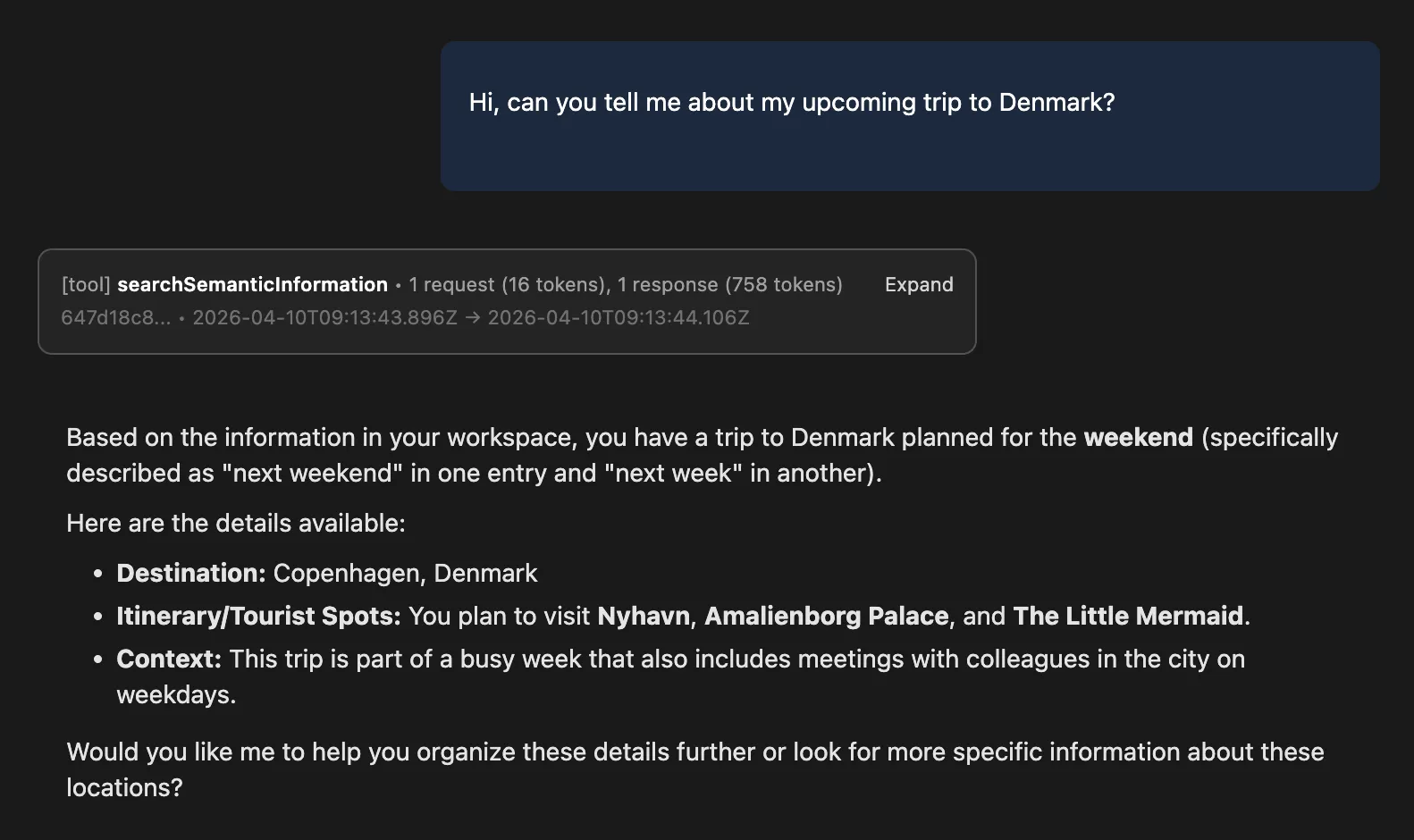
You can see that Trunky used the searchSemanticInformation-tool to gather information about an upcoming trip to Denmark, which Trunky was told about in another conversation and is not part of its current chat history.
In Trunky, you can always check what information it has in its workspace storage using the Workspace Inspector.
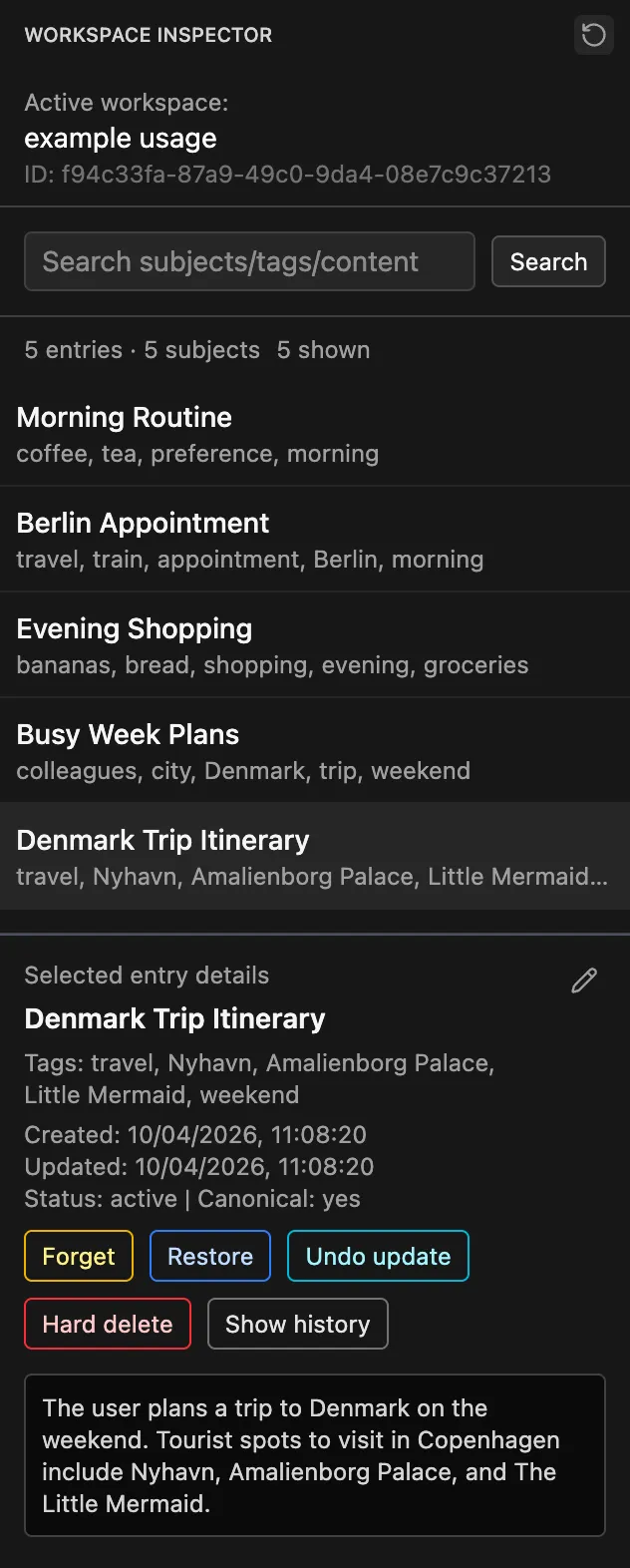
Here, you can not only see what is currently in your workspace, but also manually change, outdate, or restore a past version.
I will tell more about tools and workspace integration together with chat orchestration in a follow-up article.
Workspace Page The management page for all workspace-related stuff. Here you create and manage your workspaces. Each workspace is independent of the others. You can import knowledge before or while you are working with the AI model.
Tools Page A simple page where you can decide which tools will be available for the AI model to use. Tools are used to let the AI model interact with the world beyond sending text messages back to the user. Common use cases include database access or web searches, but it could be anything as long as the AI model understands its purpose and how to use the tool.
It is not always desirable to give an AI model access to all tools simultaneously. Therefore, you can select a combination of tools within the tools page that best fits your specific use case.
Settings Page Here you configure your application. You set up the basic connection to the model host system (such as Ollama or LM Studio), select the AI model(s) you want to use, and define some basic parameters and behaviors.
Key Decisions For Development
Model Hosting I decided not to focus on model infrastructure aspects by including model loading/management in the Trunky application. Instead, I wanted to focus on consuming AI services while still using a local model. Therefore, I chose LM Studio for hosting as it allowed me to easily switch between models and try different settings within an easy-to-use graphical UI.
Choosing a Model When choosing a model, you have a wide variety of options. Which is best depends on many factors, but for my locally hosted model, the most important factors are:
- memory requirements
- the basic intelligence
- special capabilities
For my hardware (a MacBook M1 with 32 GB of RAM), a model with about 9B parameters seems to be the sweet spot: it provides enough intelligence for the tasks I have in mind while not consuming too much memory. Larger models may fit into my RAM, but I also had in mind that I want a second model for embeddings to run in parallel, so I did not want to push it to the limits. Keep in mind that a larger token window will also increase the model’s RAM consumption. This comes in handy for development when you want to test AI interaction without chat compression, which can be very time-consuming and adds another layer of complexity while debugging.
When it came to model capabilities, I tried different freely available models and chose the Hermes3-llama3.1-8B for development and testing. It is specifically trained for tool usage and instruction-following, which is necessary for Trunky’s core features. And it already felt less chatty than other models trained for general user interaction. In later experiments, I also switched to Qwen3.5-9B, which feels different, less strict, and more creative even when using tools.
Technology Stack When it comes to AI development, Python is the best choice for a programming language. Given the lack of good UI frameworks for Python (my opinion) and the fact that I would rather not host the model in my application, I decided against Python. I gave Electron, React, and TypeScript a try. That said, if you are just starting and want to try out something fast without building a whole application around it, Python is still the way to go for most cases.
AI Tool Usage For that agentic feeling I wanted to achieve, where the application develops and follows a task across multiple execution steps, tool usage by the AI model was a necessity. When the project first started, tool selection was considered highly dynamic and extensible. While this is still a goal, the focus has shifted away from that flexibility. At this point, Trunky comes with a set of six built-in tools that allow workspace interaction only, keeping it focused on its main purpose.
Semantic Search
This feature was not planned when Trunky started, as it introduces a whole new use case for AI into the project. Conventional search approaches did not yield the results I wanted or needed, so semantic search was introduced based on embeddings generated by the text-embedding-bge-m3 embedding model. With its help, an embedding is created for every workspace entry as soon as it is stored and kept updated when the entry’s content changes. The AI benefits from semantic search, allowing it to retrieve information without relying on exact-match terms.
Workspace Memory Dividing knowledge entries into isolated workspaces instead of handling a global knowledge base not only makes tests much easier but also gives Trunky more flexibility in its use cases. Conversations are tied to a workspace and share their knowledge. That design enables me to determine which information is retrieved directly from chat history and which must be retrieved from the knowledge store without having to reset the application multiple times during testing. It also allows workspace-specific prompts, which can help control AI behavior without rebuilding the entire system prompt.
So What Is Inside?
Before we dive deeper into how an AI-centric application with an agentic feeling could be built, I want to give you an overview of Trunky’s architecture.
Architecture Overview
graph LR
 UI[User Interface]
 IPC[IPC Bridge]
 CO[ChatOrchestrator]
 WM[WorkspaceManager]
 CC[ChatCompressor]
 TR[ToolRegistry]
 PB[PromptBuilder]
 ES[EmbeddingService]
 DB[Database]
 OAI[OpenAIService]
 MA[ModelAdapter]
 CS[ConversationStore]
 WS[WorkspaceStore]

 UI --> IPC
 IPC --> CO

 CO --> PB
 CO --> CC
 CO --> WM
 CO --> OAI
 CO --> CS

 PB --> TR
 PB --> WM
 CC --> PB

 WM --> ES
 WM --> WS

 CS --> DB
 WS --> DB

 OAI --> MA
AI Orchestration: The Heart of Trunky
The central architecture is in ChatOrchestrator.ts.
graph LR
 IPC[IPC Bridge]
 CO[ChatOrchestrator]
 WM[WorkspaceManager]
 CC[ChatCompressor]
 PB[PromptBuilder]
 OAI[OpenAIService]
 CS[ConversationStore]

 IPC --> | User interaction | CO

 CO --> | provides prompts | PB
 CO --> | compresses chat history | CC
 CO --> | handles tool invocations | WM
 CO --> | calls AI model | OAI
 CO --> | stores messages | CS
This component:
- receives chat requests from the UI via IPC (determined by the architecture of Electron)
- loads conversation history from
conversationStore - determines which model to use
- builds prompt context
- calls the model through
openAIService - handles tool invocation and tool results
- stores assistant replies and tool interactions
That means the real architecture is about flow control and AI decision-making.
Prompt and Context Management
PromptBuilder.ts is the AI instruction layer.
graph LR
 CO[ChatOrchestrator]
 WM[WorkspaceManager]
 CC[ChatCompressor]
 TR[ToolRegistry]
 PB[PromptBuilder]

 CO --> | requests prompt | PB

 PB --> | provides tool descriptions | TR
 PB --> | provides workspace specific parts | WM
 CC --> | requests prompt | PB
It provides:
- system prompt construction for tool-enabled chat
- workspace-specific context injection
- strict tool usage rules and agent behavior
- token estimation and overflow handling
- conversation summarization and compression prompts
This file is where the assistant gets its “mental model” of the workspace and its operational rules. It is easy to underestimate the impact of your instructions and exact formulations in your prompts, so this part may seem less important than it actually is. I put it in second place to emphasize its relevance.
Workspace Memory and Knowledge Tools
The workspace subsystem is managed by workspaceManager.ts.
graph LR
 CO[ChatOrchestrator]
 WM[WorkspaceManager]
 PB[PromptBuilder]
 ES[EmbeddingService]
 WS[WorkspaceStore]

 CO --> | forwards tool requests | WM

 PB --> | requests workspace related prompt parts| WM

 WM --> | calculates embeddings | ES
 WM --> | stores data | WS
This backend layer:
- maintains workspace metadata with WorkspaceRegistry
- stores workspace data in separate databases via WorkspaceStore
- executes data operations through WorkspaceDataService
The layer supports backend capabilities such as:
inspectWorkspacefor general information about the current workspaceretrieveInformationfor information about a specific subject/entrysearchSemanticInformationfor a broader, more flexible searchupdateInformationto update existing or insert new informationforgetInformationto invalidate a specific piece of information (soft delete)restoreInformationto restore information that has been (soft) deleted before
That is the memory layer that makes Trunky more than a generic chat UI.
Model Provider and Adapter Layer
graph LR
 OAI[OpenAIService]
 MA[ModelAdapter]

 MA --> | provides model specific translations | OAI
Trunky is intentionally designed to be flexible with model providers.
openaiService.ts abstracts model calls, while adapters like:
OpenAIAdapter.tsHermes3Adapter.ts
allow the same orchestration logic to target different API styles. This is a key design decision for experimentation.
Tool-First AI Design
The app is built around a tool-oriented AI workflow.
The prompt logic in PromptBuilder:
- defines the assistant as a “Workspace Knowledge Assistant”
- instructs it to prefer tools when a dataset or memory is needed
- describes available workspace tools and how to use them
- encourages chaining tool calls instead of relying on hallucinated answers
This is the most AI-focused architectural decision in Trunky.
Frontend as Runtime Shell
The UI is still an important part of Trunky.
App.tsx, ChatPage.tsx and WorkspacePage.tsx, together with the pages they navigate between, provide:
- the chat interface
- workspace management controls
- model/settings configuration
- a workspace inspector
The frontend is best described as the runtime shell for the backend AI architecture. It makes the experiment accessible, while the real value is in the backend AI logic.
Summary
Trunky is a learning-first AI desktop project that explores how modern applications can combine local model experimentation, tool-enabled workflows, and workspace memory. This first article in this series described the motivation behind the project, the core architecture, and the key decisions that shaped the proof-of-concept implementation—from using model adapters and semantic search to choosing Electron, React, and TypeScript for the UI.
The goal is a practical exploration of how an AI assistant can behave more like a knowledge-aware workspace companion than a plain chatbot. As Trunky evolves, it should become better at remembering relevant information, using tools intentionally, and retrieving structured knowledge from a shared workspace. Trunky’s code isn’t public yet.
What’s Next
In future articles, I will dive deeper into the following features of Trunky and explain their concept, the ideas behind them, and how they have been built:
- Workspace memory and semantic search
- Prompt engineering and tool orchestration
- Conversation summarization and token economy
- Model adapters and provider abstraction
- UI/UX choices for AI desktop tools